Web dashboard
The web dashboard is a Next.js app where you manage orgs, applications, environments, and secrets. All encryption and decryption happens in your browser — the same envelope-encryption scheme the CLI uses.
Signing in
Sign in with Google, GitHub, or an email and password. All three use Stytch B2B discovery: you authenticate first, then choose an existing organization or create a new one, and a session is issued. seekrit provisions the matching organization just-in-time on your first authenticated request.
- Google / GitHub — click Continue with Google/GitHub, authenticate with the provider, and you're redirected back to choose your organization.
- Email and password — enter your email and password and click Sign in.
Creating an account with email
New to seekrit? Choose Create an account and enter your email — we'll email you a link to set a password. (Passwords are tied to your account, so you set yours from that link rather than typing it into the sign-up form; the emailed link also verifies your address up front.) Open the link, pick a password, and you continue to organization selection just like any other sign-in. Forgot an existing password? Forgot password? on the sign-in screen uses the same email-link flow.
GitHub sign-in asks for an email code. Unlike Google, GitHub doesn't attest that your email is verified, so after you choose an organization we email you a one-time code to confirm the address before issuing a session. Enter it (or hit Resend code) to finish signing in. This is a primary-factor check, not two-factor auth — any 2FA on your GitHub account is handled by GitHub itself before you're redirected back. (Email/password sign-in is already email-verified, so it skips this step.)
Sign-in is backed by Stytch B2B. The browser only ever receives a public token; the secret key lives with the API and never reaches the client. Your password is verified by Stytch, not stored by seekrit — and, like OAuth, it is unrelated to your encryption passphrase, which (along with your private key and plaintext secrets) never leaves your browser.
Key setup
The first time you sign in you'll be asked to create your encryption keys. The browser generates a P-256 keypair and encrypts the private key with a passphrase you choose. Only your public key and the passphrase-encrypted private key are uploaded.
Your passphrase is not your sign-in password. It never reaches the server, so there is no passphrase reset — if you forget it, your encrypted data cannot be recovered. Store it in a password manager. (Your email/password sign-in credential, by contrast, can be reset by email — it unlocks a session, not your secrets.)
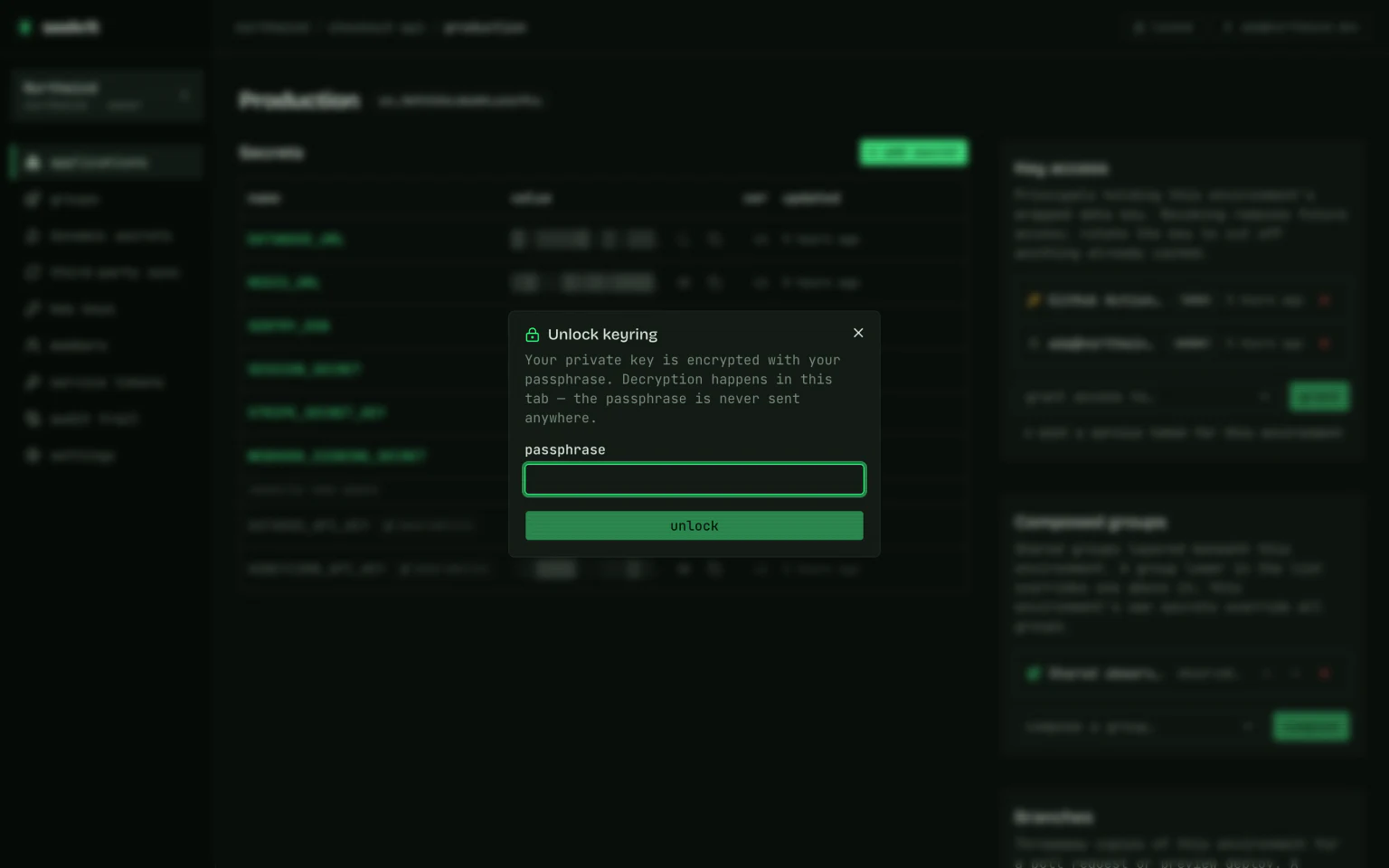
On later visits, the keyring starts locked. The first time you reveal or edit a secret in a session, you'll be prompted to unlock it with your passphrase; it stays unlocked (in memory only) until you lock it or reload.
Two-factor authentication
Add a second factor to your account from the account menu → security. Choose Enable two-factor authentication, scan the QR code with an authenticator app (1Password, Google Authenticator, Authy, …), and enter the 6-digit code to confirm. seekrit then shows a set of one-time recovery codes — save them somewhere safe; each one signs you in once if you lose your device. You can regenerate the codes or disable the second factor from the same page.
Once enabled, sign-in prompts for your authenticator code after the provider step. Lost your device? Choose Use a recovery code on that screen.
Requiring MFA for everyone. Org admins can turn on Require two-factor authentication under organization → settings → access & security. Members without a second factor are then prompted to set one up before they can access the organization. This is distinct from the GitHub email-code check above (a primary-factor step) — it's a genuine second factor, and it's independent of your passphrase, which is what decrypts secrets.
Members and invites
The Members page lists everyone in the org with their role and whether they've finished encryption-key setup. Admins and owners see an Invite member button:
- Enter the teammate's email and pick a role —
memberoradmin(ownership can't be granted through an invite). We email them a magic-link invitation. - Following the link and signing in makes them a member at the role you chose. Until then the invite shows under Pending invites, where you can revoke it (revoking only removes the pending record — it doesn't affect anyone who has already joined).
Joining an org doesn't grant access to any secrets. A new member still needs their own environment key grants, and must finish key setup before they can receive them — the Members page flags who's still setup pending.
Managing secrets
- Organizations → Applications → Environments. New application asks for the
environments in the same dialog —
development,staging, andproductioncome pre-selected, and you can deselect them or add your own — so a new application opens with columns already in place. Add more later with new environment. Either way each environment's data key is generated in your browser and wrapped to your public key. - A new application page shows Get this application running: a short checklist of environments →
secrets → machine access → the
seekrit runcommand, each with the control that completes it. It disappears on its own once those are done (or ✕ to hide it for good). The third step is the one people miss: secrets aren't readable by anything outside the browser until a service token exists. - An application page shows the environment matrix: one row per secret name, one column per
environment, so you can compare a key across
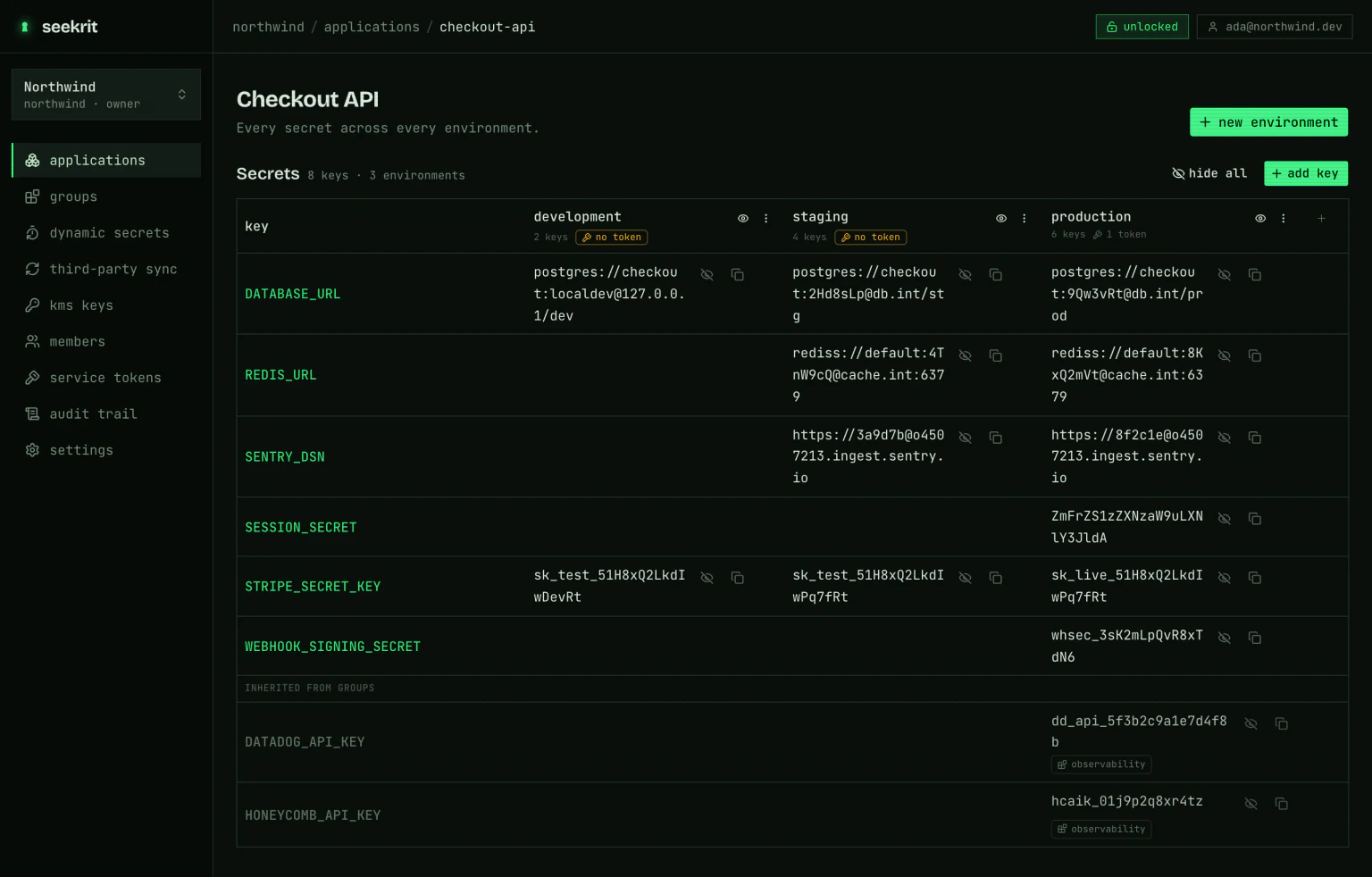
development,staging,production, … at a glance. Each column header reports its own state — how many keys it holds, and either the number of service tokens bound to it or a no token warning you can click to mint one. The header's ⋯ menu opens the environment, reveals the column, or mints a token; the environment name links through to its grants and composition. A cell that isn't set in an environment reads not set (drift you can spot immediately); an environment you don't hold a key grant for shows a lock — you still see that the key exists and its version, but the value stays hidden. Reveal all, a column header, or a row's eye decrypt in bulk (one unlock, then locally); a revealed value wraps to its full length instead of stopping at the column edge, so nothing stays hidden behind an ellipsis. Add a key across several environments at once with Add key, and a cell's ⋯ menu can copy its value to other environments (decrypted and re-encrypted for each target in your browser). Past the last column, + adds an environment without leaving the table. - Add key also has a paste .env tab for moving a whole file in at once — the same parser
seekrit secrets importuses. It previews every key it found (truncated value, andnewvsoverwrites), lists any invalid variable names it will skip, and then writes the lot to every environment you selected — each value encrypted separately, one unlock per environment. A multi-line value that isn't quoted is called out here, because unquoted it would otherwise import as one truncated key plus the value's own lines as garbage names. - JSON values — a service-account key, a Firebase config — are recognised as they're typed or
pasted. The editor marks a value that parses, says how many keys it has, and offers format to
re-indent it (or minify to put it back on one line); a revealed JSON secret carries a json
tag in the table. If it nearly parses, it says so and offers the fix — pasting a credential
along with the quotes that wrapped it in a
.envfile is the usual culprit. Nothing is rewritten unless you click: what gets encrypted is exactly what the box says. - Environments read left to right in pipeline order — recognised slugs (
development,test,staging,preview, …) sort ahead of anything custom, andproductionalways sorts last. Environments the ordering doesn't recognise fall between the two, in the order you created them. - Hold no key grant on any environment here? Add key becomes request access, which names the owners and admins who can wrap a key to you and drafts the ask — a grant can only come from someone who already holds the key, so there is nothing seekrit can do server-side.
- Secrets inherited from composed groups join the matrix under an inherited from groups heading — greyed out, with each cell tagged by the group it comes from (click the tag to jump to that group environment). A secret an environment defines directly shadows an inherited one of the same name, so it shows as your own (editable) value in that column. The inherited value decrypts with the group environment's key, so it reveals wherever you hold that grant — even in a column you otherwise can't read.
- A group page shows the same matrix over the group's own environments. Groups compose nothing, so there are no inherited rows — just the shared secrets you edit here, which flow into every application environment that composes the group at a matching slug.
- Below the matrix, Connect keeps the snippets for consuming these secrets — CLI, Docker, GitHub Actions, and SDK — with the application's own slugs filled in. Pick which of the application's service tokens the snippet refers to; the token carries its own org, app, and environment, so there's nothing else to configure. (The one-time mint dialog is the only other place this appeared, and it's gone once dismissed.)
- On an environment page, the Secrets table lets you add, reveal, edit, and delete secrets. Values are encrypted on save and decrypted on reveal, locally. The value column takes whatever width the rest of the row doesn't need — widen the window and it widens with it — and a revealed value wraps over as many lines as it takes, so a key reads in full without leaving the table. A value long enough to fill the row (a JSON credential) scrolls in place; the editor is still where it reads formatted.
- A secret's history button (also History / restore in the matrix's ⋯ menu) opens every version ever stored: when it was saved, who saved it, and its value behind the usual reveal. Restore rolls a version back — the old value is written back as a new version, so nothing is overwritten and the rollback is itself undoable. Deleting a secret deletes its history too, so there's nothing left to restore afterwards.
- The Key access panel (admins) shows who holds the environment key and lets you grant it to members or service tokens, or revoke it. Granting only re-wraps the key for a principal that already exists, so the panel also offers mint a service token for this environment — the same mint flow as the service tokens page, pre-bound to this environment. (Group environments don't offer it: a token binds to an application environment and picks up composed group keys from there.)
- The Composed groups panel (admins) layers shared groups beneath an environment's own secrets — see below.
Groups
Groups are reusable secret bags shared across applications — a shared database cluster, third-party API keys, anything more than one app needs. Manage them from the Groups entry in the org sidebar.
- A group has its own environments, one per slug you want to share (e.g.
production,staging). Each group environment holds secrets and key grants exactly like an application environment — same client-side crypto, same Key access panel. - On an application environment's page, the Composed groups panel lets admins compose one or more groups. At resolve time the layers merge in order: composed groups first (a group lower in the list overrides one above it), then the environment's own secrets on top. Reorder with the arrows; remove with ✕.
- A group is matched into an app environment by slug: composing
shared-infrainto an app'sproductionenvironment pulls in the group'sproductionenvironment. Create the matching group environment before you rely on it.
Composition wires up which secrets layer together, not who can read them. Each principal — member or token — still needs its own key grant on every group environment it should decrypt. Minting a token (below) grants those automatically.
Dynamic secrets
The Dynamic secrets section (admin only) mints short-lived credentials for six providers, chosen with the provider selector when you add a target.
Postgres, MySQL/MariaDB & Redis — register a target by entering its connection
details and admin connection string; the admin string is wrapped to the broker's
key in your browser, so the server only ever stores ciphertext. Pick an
access level (read-only / read-write / custom); for Postgres presets the
dialog shows a one-time setup query to paste into your database as an admin
(MySQL and Redis presets grant inline, so there's no setup step). Click lease
and pick a lifetime: the browser generates the password and its verifier locally,
sends only the verifier, and shows the ready-to-use postgres://, mysql://, or
redis:// URL once.
MongoDB — register a target by entering its connection details and admin
mongodb:// string (needs userAdmin on the database); the admin string is
wrapped in your browser, so the server only ever stores ciphertext. Pick an
access level — read-only / read-write map to MongoDB's built-in
read/readWrite roles, or custom to grant specific roles — and the dialog
shows a one-time query to create the provisioning user. MongoDB is tier-2 (its
createUser hashes the password server-side), so — like AWS — lease generates
an ephemeral keypair in the browser, sends only the public key, and seekrit
generates the password, creates the user, and returns the credential wrapped to
that key, unwrapped locally and shown as a ready-to-use mongodb:// URL
once. Revoking drops the user immediately.
SSH — register a target and the browser generates a certificate authority; only
its private key is wrapped and uploaded, and the dialog shows the CA public key
plus the one-time host setup to install (TrustedUserCAKeys). Click lease,
enter the login principals, and the browser generates an ephemeral keypair, sends
only the public key, and shows the private key + certificate + ssh command
once. Certificates expire on their own — revoking a lease records it in the
ledger, but the cert stays valid until its TTL (keep lifetimes short).
AWS — register a target with an assumable role ARN, region, and a base IAM
credential (needing only sts:AssumeRole); the credential is wrapped in your
browser, and the dialog shows the trust policy to attach to the role. Click
lease and pick a lifetime (15 min – 12 h, STS's own bounds): the browser
generates an ephemeral keypair, sends only the public key, and seekrit assumes the
role and returns the STS credential wrapped to that key — unwrapped locally and
shown as ready-to-source export lines once. STS credentials can't be revoked
individually, so they rely on their short TTL.
GCP — register a target with the service account to impersonate, optional OAuth
scopes, and a source service-account key JSON (needing
roles/iam.serviceAccountTokenCreator on the target); the key is wrapped in your
browser, and the dialog shows the IAM binding to apply. Click lease and pick
a lifetime (up to 12 h): the browser generates an ephemeral keypair, sends only the
public key, and seekrit impersonates the service account and returns the access token
wrapped to that key — unwrapped locally and shown as ready-to-source export
lines (CLOUDSDK_AUTH_ACCESS_TOKEN / GOOGLE_OAUTH_ACCESS_TOKEN) once. Tokens
can't be revoked individually, so they rely on their short TTL.
See Temporary access.
Service tokens & audit
- Service tokens — mint machine credentials for CI and containers. Each token is bound to one application environment: pick the app and environment when minting, and the browser auto-grants the token that environment's key plus the keys of every group it composes (unwrapping each with your key and re-wrapping to the token). The token is shown once; copy it then. You can mint from this page, from an environment's Key access panel, or from a matrix column header — the last two pre-fill the binding. See Service tokens.
- Audit trail — every action in the org, append-only, with actor attribution. Select any row to expand its full detail (actor, resource, IP, event ID, and metadata) and jump straight to the referenced resource.
Troubleshooting sign-in
If the dashboard shows an error after sign-in, it will name the cause:
- Session rejected (401) — the API couldn't verify your session. Usually an expired session; sign in again.
- API unreachable — the console couldn't reach the API. Retry in a moment.
- Wrong email or password — sign-in failed at the password step. Double-check both, or use Forgot password? to set a new one by email.
- Lost your authenticator — on the two-factor prompt, choose Use a recovery code and enter one of the codes you saved at enrollment. Then visit account → security to regenerate codes or re-enroll a new device.